

0 Spicy Yoghurt | Last updated: 26 November 2026 | JavaScript tutorial
JavaScript game performance: find and fix lag
Is your JavaScript game lagging or stuttering? Learn how to measure its performance, use the profiler in your browser to find out what slows it down, and fix the most common problems in HTML5 canvas games. Most fixes have a live demo, so you can see how much time they save.
Here's a meadow full of fireflies. Each firefly glows, flies around and bumps into the others. The demo has two versions. The slow one is written the way a lot of games start out, and the optimized one uses the fixes from this tutorial. The graph in the top-right corner shows how long each frame takes:
Each bar in the graph is one frame. The dashed line is the frame budget: the time your device gives you to get a frame ready. A bar that goes above the line is a frame that took too long. Click Find your device's limit: the demo starts again with 100 fireflies, and keeps adding more until your device can't keep up. Try it with both versions.
What makes a game slow?
Your screen shows a new image a fixed number of times per second. Most screens do it 60 times per second, which is called 60 Hz, and some do it 120 times or more. requestAnimationFrame() calls your game loop once for every new image, as explained in the tutorial on the JavaScript game loop.
So at 60 Hz, each frame has 1000 / 60 = 16.7 milliseconds to update the game and draw it. That's the frame budget. At 120 Hz, it's only 8.3 milliseconds. When a frame takes longer, it isn't ready in time, and the screen shows the old frame again. Your game skips a beat: a dropped frame.
A game can be slow in two ways:
- Too much work in every frame - Every frame takes too long. The game drops a lot of frames and runs at a steady but low frame rate, like 30 or 40 fps. Usually there are too many objects, too many checks or too much to draw.
- A long frame now and then - The game runs fine most of the time, but every few seconds it freezes for a moment. That's called a stutter. The cause is usually something that only happens once in a while, like loading an image or cleaning up memory.
In the demo below, a single firefly flies back and forth. The dots behind it show where it was in each frame. With Every frame, the code wastes 25 milliseconds in every frame, and with Now and then, it wastes 200 milliseconds once every 90 frames:
With None, the dots are evenly spaced. With Every frame, there are fewer frames per second, so the firefly moves farther between two frames, and the gaps between the dots get bigger. With Now and then, it flies smoothly most of the time, but every second or two it jumps a long way at once.
Notice that the graph shows milliseconds, not frames per second. Milliseconds are easier to work with, because they add up: if updating the game takes 6 milliseconds and drawing it takes 8, the frame takes 14. With frames per second, a drop of 10 fps can mean very different things. Going from 60 to 50 fps makes each frame 3.3 milliseconds longer, from 16.7 to 20. Going from 30 to 20 fps makes each frame 16.7 milliseconds longer, from 33.3 to 50.
Measure your frame time
Before you change anything, find out where the time goes. Otherwise, you might spend an evening speeding up something that only takes a fraction of a millisecond.
Your game loop calls update() to move everything and draw() to draw it, as in the tutorial on the JavaScript game loop. To time them, you need performance.now(): it gives you the current time in milliseconds, down to fractions of a millisecond. Call performance.now() before update(), after update() and after draw(). Then subtract to get how long each one took:
let oldTimeStamp = 0;
let updateTime = 0;
let drawTime = 0;

function gameLoop(timeStamp) {
    let secondsPassed = (timeStamp - oldTimeStamp) / 1000;
    oldTimeStamp = timeStamp;

    let start = performance.now();
    update(secondsPassed);
    let afterUpdate = performance.now();
    draw();
    let end = performance.now();

    updateTime = afterUpdate - start;
    drawTime = end - afterUpdate;

    window.requestAnimationFrame(gameLoop);
}
The timeStamp that requestAnimationFrame() passes to gameLoop() won't work for this, because it stays the same during the whole frame. secondsPassed is the time since the previous frame, in seconds; the tutorial on the game loop explains why update() needs it.
Frame times jump up and down from one frame to the next, so a single one doesn't tell you much. Keep the times of the last 60 frames in an array instead, and show the average and the slowest one on the canvas:
let frameTimes = [];

function measureFrame(time) {
    frameTimes.push(time);
    if (frameTimes.length > 60) {
        frameTimes.shift();
    }
}

function drawFrameTime() {
    let total = 0;
    let slowest = 0;
    for (let time of frameTimes) {
        total += time;
        slowest = Math.max(slowest, time);
    }
    let average = total / frameTimes.length;

    context.fillStyle = 'white';
    context.font = '16px Arial';
    let averageText = 'Average: ' + average.toFixed(1) + ' ms';
    let slowestText = 'Slowest: ' + slowest.toFixed(1) + ' ms';
    context.fillText(averageText, 10, 20);
    context.fillText(slowestText, 10, 40);
}
In gameLoop(), call measureFrame(updateTime + drawTime) after the measurements, and drawFrameTime() right after that. That way, the frame time is drawn on top of everything else on the canvas. Keep in mind that these measurements only cover your own code. Also watch the slowest frame: a game with a good average can still stutter.
The demo below is the slow version of the meadow at the top of the page. Each bar in its graph shows the time from the start of one frame to the start of the next, split into three parts. The blue part is the time spent in update(), and the orange part is the time spent in draw(). The gray part is the rest: work the browser does after your code, and waiting for the screen's next refresh. As long as a frame is on time, the gray part fills the bar up to the dashed line. Switch between 500, 2,000 and 5,000 fireflies:
With more fireflies, the blue part grows much faster than the orange part. At 5,000 fireflies, update() alone takes longer than the whole frame budget. So in this game, update() is the place to start.
There's a catch with draw(), though. Most browsers draw the canvas with the graphics card, the GPU. The browser collects your drawing commands first, and the GPU does the real work after your game loop is done. That means the time in draw() is only part of the cost of drawing. So when the gray part pushes a bar above the dashed line, drawing may be the problem, even when draw() itself looks fast.
Here's a quick test to find out if drawing is the problem: skip everything in draw() for a moment, except the fps counter from the tutorial on the game loop. If the frame rate suddenly goes up, drawing is what slows your game down. If it stays low, the problem is in update().
Profile your game with your browser's developer tools
Your own measurements tell you whether update() or draw() takes too long. To find out which function is to blame, use a profiler. A profiler records everything the browser does for a few seconds, and shows you how much time each function took. Recording your game like this is called profiling.
Every browser has a profiler in its developer tools. Here's how to use the one in Chrome and Edge:
- Step 1 - Press F12 (or Cmd+Option+I on a Mac) to open the developer tools, and click the Performance tab.
- Step 2 - Click the round record button, let your game run for a few seconds, and click Stop.
- Step 3 - Look at the Frames track to find the frames that took too long, and at the Main track to see what your code did during those frames.
You can try it right here: set the demo in the previous section to 5,000 fireflies, and record while it's on your screen. The demos on this page stop when you scroll them out of view. This is what a recording of that demo looks like:
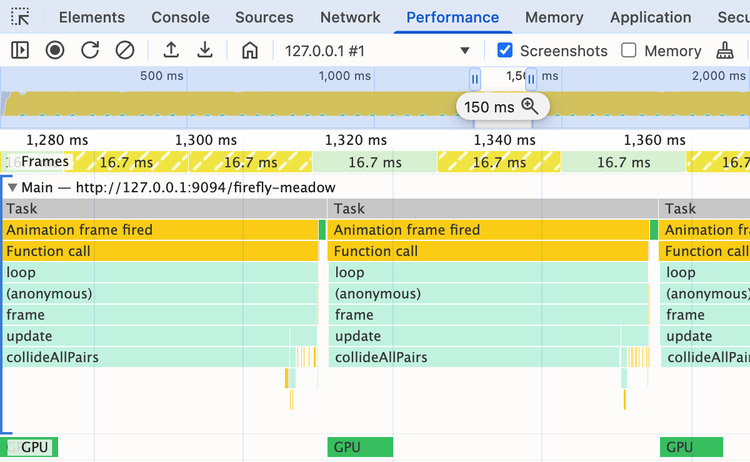
The Main track is a flame chart. Each block is a function call, and the blocks under it are the functions it called. The wider the block, the longer it took. Look under Animation frame fired: that's where your game loop runs, with update(), draw() and everything they call.
In the recording above, almost all the time in each frame goes to collideAllPairs(), the function in the demo that checks every pair of fireflies for a collision. Higher up in the stack, the blocks loop and frame come from the demo's game loop.
When a recording has a lot of different functions, the Bottom-up tab under the tracks helps. It lists the functions that took the most time themselves, not counting the time spent in the functions they called. The function at the top of that list is the first one to look at.
Your computer is probably a lot faster than the phones many of your players use. Click the gear icon in the top-right corner of the Performance tab, and choose 4x slowdown under CPU, to see how your game runs on a slower device. This is called CPU throttling. It only slows down your JavaScript, not the GPU, so test on a real phone too.
You can also give parts of your own code a name in the recording, with performance.mark() and performance.measure():
performance.mark('update-start');
update(secondsPassed);
performance.measure('update', 'update-start');
The mark is a moment in time, and the measure is the time from that mark until now. Each measure shows up in the Timings track of the recording, with the name you gave it.
Firefox has its own profiler too, the Firefox Profiler, in its Performance tab, and Safari has one in its Timelines tab. They work in a similar way.
Use a grid to do fewer collision checks
The slow version of the demo checks every firefly against every other firefly, to see if they touch. That's what collideAllPairs() in the recording above does, with two loops, one inside the other:
for (let i = 0; i < fireflies.length; i++) {
    for (let j = i + 1; j < fireflies.length; j++) {
        checkCollision(fireflies[i], fireflies[j]);
    }
}
The array fireflies holds every firefly, with its position x and y. checkCollision() checks if two fireflies touch, and makes them bounce off each other, as explained in the tutorial on collision detection.
With n fireflies, the two loops above check n × (n − 1) / 2 pairs. For 1,000 fireflies, that's 499,500 checks in every frame. For 2,000, it's almost 2 million: twice as many fireflies means four times as many checks. That's why the blue part of the graph grew so fast in the demo about measuring your frame time.
But two fireflies on opposite sides of the meadow can never touch. So divide the meadow into a grid of square cells, and keep a list of the fireflies in each cell. A firefly can then only touch the fireflies in its own cell and in the eight cells around it.
Make the cells at least as big as the distance at which two fireflies touch, 8 pixels here, so two fireflies that touch are never more than one cell apart. Don't make the cells much bigger, though: the more fireflies in a cell, the more pairs you check. In this demo, the cells are 16 pixels wide, twice that distance:
const cellSize = 16;
const columns = Math.ceil(canvasWidth / cellSize);
const rows = Math.ceil(canvasHeight / cellSize);

// One list per cell, created once
let cells = [];
for (let i = 0; i < columns * rows; i++) {
    cells.push([]);
}

function getColumn(x) {
    return Math.min(Math.floor(x / cellSize), columns - 1);
}

function getRow(y) {
    return Math.min(Math.floor(y / cellSize), rows - 1);
}
canvasWidth and canvasHeight are the size of the canvas, 750 by 400 pixels. In a world that's bigger than the canvas, use the size of the world instead. In getColumn() and getRow(), Math.min() keeps a firefly that's exactly on the right or bottom edge in the last column or row. The cells are numbered row by row, so the cell in row r and column c is cells[r * columns + c].
In every frame, empty the cells, put each firefly in its cell, and then check each firefly against the fireflies in the cells around it:
function detectCollisions() {
    for (let cell of cells) {
        cell.length = 0;
    }
    for (let i = 0; i < fireflies.length; i++) {
        let firefly = fireflies[i];
        let column = getColumn(firefly.x);
        let row = getRow(firefly.y);
        cells[row * columns + column].push(i);
    }

    for (let i = 0; i < fireflies.length; i++) {
        let firefly = fireflies[i];
        let column = getColumn(firefly.x);
        let row = getRow(firefly.y);
        for (let r = row - 1; r <= row + 1; r++) {
            for (let c = column - 1; c <= column + 1; c++) {
                if (r < 0 || r >= rows || c < 0 || c >= columns) {
                    continue;
                }
                for (let j of cells[r * columns + c]) {
                    // Check each pair only once
                    if (j > i) {
                        checkCollision(firefly, fireflies[j]);
                    }
                }
            }
        }
    }
}
The cells hold the index of each firefly in the array, not the firefly itself. That way, j > i makes sure each pair is checked only once, just like j = i + 1 did in the two loops earlier.
Try it in the demo below, with 2,000 fireflies. The counter in the top-left corner shows how many pairs the demo checks in each frame:
With All pairs, the demo checks 1,999,000 pairs in every frame. With a grid, it checks fewer than 20,000, and the blue part of the graph almost disappears. Unlike some of the fixes further down this page, a grid helps on every device and in every browser. The tutorial on flocking with boids builds a grid like this step by step, and uses it to find the neighbors of thousands of birds.
Draw the background only once
The meadow behind the fireflies has a sky, 260 stars, a moon with a glow, two hills and 2,000 blades of grass. None of it ever changes, but the slow version draws all of it again in every frame.
Draw it once, on a second canvas that isn't on the page. Then copy that canvas onto your game canvas at the start of every frame. Copying takes one call to drawImage(), no matter how much is on it. You may know drawImage() from the tutorial on images and sprites: it draws an image, or another canvas, onto your canvas. drawMeadow() draws the whole meadow; you'll find it in the example code at the end of this page:
// A canvas that isn't on the page, as big as the game canvas
let background = document.createElement('canvas');
background.width = canvasWidth;
background.height = canvasHeight;
drawMeadow(background.getContext('2d'));

function draw() {
    // One call instead of thousands
    context.drawImage(background, 0, 0);

    // ...then draw the fireflies on top
}
document.createElement('canvas') creates a canvas that you can draw on, but that the visitor never sees. drawMeadow() draws on the context you pass it, so everything ends up on background, not on the canvas on the page. The background fills the whole game canvas, so drawing it wipes out the previous frame. You don't need clearRect() first.
Choose Once, and the orange part of the bars, the time in draw(), gets smaller. In our tests, draw() was almost twice as fast on a computer, and eight times as fast on a phone.
You can also put a second canvas with the background behind your game canvas, and stack them with CSS. Then the browser shows the background for you, and you only draw the fireflies. The downside is that you have to keep both canvases the same size and in the same place.
Don't draw what's off-screen
In a lot of games, the world is bigger than the screen, and most objects are off-screen at any one time. You still have to update them, but drawing them is a waste. The canvas does cut off everything that falls outside it, but every call to draw something still takes time.
In the demo below, the meadow is four times as wide as the canvas, and a camera moves over it. The camera is a plain object that you make yourself, like {x: 0}. You move it every frame, for example to follow the player. camera.x is the left edge of the part you see. Skip every firefly that's outside that part:
context.save();
context.translate(-camera.x, 0);
for (let firefly of fireflies) {
    if (
        firefly.x < camera.x - 20 ||
        firefly.x > camera.x + canvasWidth + 20
    ) {
        continue;
    }
    drawFirefly(firefly);
}
context.restore();
context.translate() moves everything you draw to the left by camera.x, so the part of the meadow that the camera sees ends up on the canvas. context.save() and context.restore() undo the translation after the loop, so anything you draw after it, like the score, stays in place. drawFirefly() draws one firefly with its glow; you'll see it in the next section. The 20 pixels leave room for the glow, which reaches about 18 pixels from the middle of a firefly. Without them, a firefly just outside the edge would lose the part of its glow that reaches into the canvas.
There are 5,000 fireflies in this meadow, and only about a quarter of them are on the canvas at any given moment. The counter in the top-left corner shows how many the demo draws. In our tests, skipping the fireflies outside the canvas cut the time spent in draw() by up to half on a computer, and by more than half on a phone. draw() isn't four times as fast, because it still draws the background, and still goes through every firefly to see if it's on the canvas.
Pre-render what's slow to draw
Each firefly gets its glow from shadowBlur, which draws a blurred shadow around a shape, as explained in the tutorial on drawing on the canvas. A blur is a lot of work: for every pixel of the glow, the browser mixes the colors of the pixels around it.
A glow looks the same every time, so you can draw it once, on a small canvas that isn't on the page. That's called pre-rendering. Then copy the small canvas for every firefly, just as you did with the background earlier on this page:
// Draw the glow once on a small canvas, so the slow shadowBlur
// only runs once per color
function createGlow(color) {
    let glow = document.createElement('canvas');
    glow.width = 36;
    glow.height = 36;
    let glowContext = glow.getContext('2d');
    glowContext.shadowBlur = 10;
    glowContext.shadowColor = color;
    glowContext.fillStyle = color;
    glowContext.beginPath();
    glowContext.arc(18, 18, 3, 0, Math.PI * 2);
    glowContext.fill();
    return glow;
}

let glow = createGlow('#ffcf51');

function drawFirefly(firefly) {
    // Copy the glow, with the firefly in the middle
    context.drawImage(glow, firefly.x - 18, firefly.y - 18);
}
The small canvas is 36 by 36 pixels, so the firefly's position minus 18 is the top-left corner of the glow. The fireflies in the demo have three colors, so the demo creates three glows.
Both glows look the same, but whether the pre-rendered one is faster depends on your browser. In our tests, the pre-rendered glow made little or no difference in Chrome or Safari, or on a phone, because a graphics card can blur very quickly. The only exception was Firefox when it wasn't using the graphics card: then the pre-rendered glow was about three times as fast. That's why it pays to measure, and to do it in more than one browser: a fix that saves a lot of time in one browser might not help at all in another.
Good to know - A browser draws without the graphics card when the card or its driver is too old, or when hardware acceleration is turned off in the browser's settings.
Pre-rendering works for anything that's slow to draw and looks the same every time, like a gradient, a complicated shape or text that doesn't change.
Lower the resolution on slow devices
A lot of phones have a devicePixelRatio of 3: for every CSS pixel, the screen has 3 × 3 = 9 pixels. The tutorial on setting up an HTML5 canvas shows how to give your canvas a pixel for every pixel of the screen. On a phone with a ratio of 3, a 750 by 400 canvas then gets 2,250 by 1,200 pixels. That's 2.7 million pixels instead of 300,000, and the browser has to fill in every one of them in every frame.
For a game, the sharpest possible canvas often isn't worth the time. Use at most 2 canvas pixels for every CSS pixel:
// At most 2 canvas pixels per CSS pixel, even if the ratio is 3
let ratio = Math.min(window.devicePixelRatio, 2);
canvas.width = canvasWidth * ratio;
canvas.height = canvasHeight * ratio;
// Keep the same size on the page
canvas.style.width = canvasWidth + 'px';
context.scale(ratio, ratio);
canvas.style.width keeps the canvas the same size on the page, even though it has more pixels. context.scale() makes sure you can keep drawing in the same coordinates, from (0, 0) to (750, 400). On a screen with a ratio of 1 or 2, this code changes nothing. On a phone with a ratio of 3, the canvas gets two-thirds of the full width and height, which is between the 75% and 50% options in the demo below. For a game that doesn't need a high resolution, like a pixel art game, you can go even lower.
Full gives the canvas a pixel for every pixel of your screen. The 75% and 50% options give the canvas fewer pixels in both directions, so at 50%, it has half the width and half the height: a quarter of the pixels. The counter in the top-left corner shows the size of the canvas in pixels:
At 50%, the meadow gets blurry. How much faster the demo gets depends a lot on your device. On a fast computer, you might not see any difference in the graph. On our test phone, each frame took a little less time. In a browser that wasn't using the graphics card, drawing a frame was up to three times as fast at 50%.
Reuse objects instead of creating new ones
JavaScript automatically cleans up the objects you no longer use. That's called garbage collection. It's handy, but it happens whenever the browser decides to. A big cleanup can make your game miss a frame, and that shows up as a stutter. Every {x: 10, y: 20} and every [] in your game loop is a new object, and so is the array you get back from map() or filter().
When two fireflies bump into each other, a few sparks fly off: small dots with a position, x and y, and a speed, vx and vy. Each spark also has a life: the number of seconds until it disappears. The slow version of the meadow at the top of the page moves them like this, in every frame:
// A new object for every spark, and two new arrays, in every frame
sparks = sparks
    .map(function (spark) {
        return {
            x: spark.x + spark.vx * secondsPassed,
            y: spark.y + spark.vy * secondsPassed,
            vx: spark.vx,
            vy: spark.vy,
            life: spark.life - secondsPassed
        };
    })
    .filter(function (spark) {
        return spark.life > 0;
    });
The code above throws every spark away in every frame and creates a new one. Instead, change the sparks you already have, and move the ones that are done to a second array, unusedSparks, so you can reuse them later:
for (let i = sparks.length - 1; i >= 0; i--) {
    let spark = sparks[i];
    spark.x += spark.vx * secondsPassed;
    spark.y += spark.vy * secondsPassed;
    spark.life -= secondsPassed;

    if (spark.life <= 0) {
        // Move the last spark here, and keep this one
        sparks[i] = sparks[sparks.length - 1];
        sparks.pop();
        unusedSparks.push(spark);
    }
}
When a spark is done, the last spark in the array takes its place. That's faster than splice(), which moves every spark after the one it removes. The loop runs backwards, from the end of the array to the start, so the spark that moves into the empty spot has already been updated.
When you need a new spark, take one from unusedSparks first, as addSparks() does in the example code at the end of this page. Reusing objects like this is called object pooling, and the tutorial on smooth canvas animation shows a simple pool for bullets.
To see how much garbage your game makes, select the Memory checkbox in the Performance tab before you record. The recording then shows a graph of the memory your game uses. If the line climbs and drops again and again, like the teeth of a saw, your game creates a lot of garbage. Every drop is a cleanup:
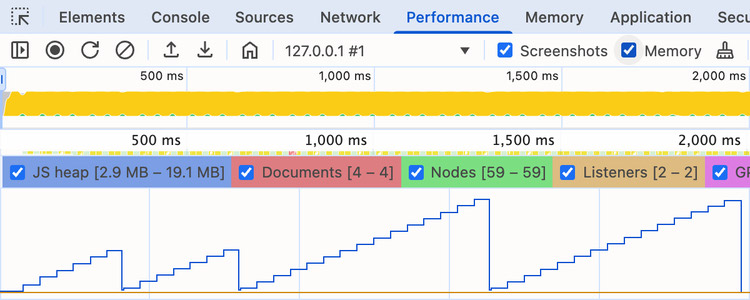
The memory graph above comes from the demo with 5,000 fireflies, in the section about measuring your frame time. That demo creates a lot of garbage, but the cleanups don't show up as long bars in its graph: modern browsers clean up small objects very quickly. Garbage starts to matter in a big game that creates far more new objects every frame, or on a slow phone. So before you rewrite your code, check whether the cleanups really cause long frames.
Common questions about game performance
Why does my game run fine on my computer but lag on my phone?
A phone has a slower processor and a slower graphics card than most computers. Its canvas often has more pixels to fill too, because of a higher devicePixelRatio. It also slows itself down when it gets hot. CPU throttling in the profiler gives you an idea of how your game runs on a slower device, but always test on a real phone too.
Why does my game get slower the longer it runs?
Usually, something keeps growing, or something runs twice. Here are the most common causes:
- An array that keeps growing - You add bullets to an array, but never remove them.
- Event listeners that pile up - You add the same listeners again every time a level starts, without removing the old ones.
- A second game loop - You call window.requestAnimationFrame(gameLoop) to restart the game while the old loop is still running, so now two loops run at the same time. To stop the old loop first, keep the number that requestAnimationFrame() returns, and pass it to cancelAnimationFrame().
Record a profile, and look for a function that runs more often than it should, or for memory that keeps climbing in the memory graph.
Is it faster to draw everything in one path?
Not necessarily. A lot of older tips say to put all shapes of the same color in one path, and call fill() or stroke() only once. In our tests in Chrome and Firefox, 3,000 small circles, lines or rectangles in one path were about twice as slow as drawing them one by one. Try both in your own game, and measure.
Is the canvas faster than HTML elements for a game?
With a lot of moving objects, yes. The canvas draws everything in one place, while the browser has to keep track of the position and the style of every HTML element. For a few buttons and the score, HTML elements are fine. Just don't read their size or position in every frame, as explained in the tutorial on smooth canvas animation.
When should I switch to WebGL?
When the profiler tells you that drawing is the problem, and the fixes on this page aren't enough. WebGL works with the GPU more directly, and can draw tens of thousands of images per frame. Libraries like PixiJS handle the WebGL code for you, so you don't have to write it yourself.
Can I run my game in a web worker with OffscreenCanvas?
Yes. canvas.transferControlToOffscreen() gives you an OffscreenCanvas that a web worker can draw on. Then your game runs on its own thread, separate from the page, so a busy page doesn't slow down your game. A worker can't read the keyboard or the mouse, though: you have to send that input from the page with postMessage().
Are whole-number coordinates faster?
Sometimes. When you draw an image at x = 10.5, the browser spreads it over two pixels, and in some browsers that's slower. Rounding with Math.round() can help, and it makes pixel art look sharper too. Measure whether it makes a difference in your game.
Does it matter if I use a for loop or forEach()?
Hardly ever. Differences like that are a fraction of a millisecond. The big wins are in how many things you check and draw, as the sections above show. Measure before you rewrite anything.
Should I cap the frame rate to save battery?
Usually not. requestAnimationFrame() already pauses when the tab is hidden. If you do want a lower frame rate, the tutorial on the JavaScript game loop shows how to skip frames without changing the speed of your game.
Example code: an optimized firefly meadow
Here's an example page that puts most of the fixes from this tutorial together in a single HTML file. It's the optimized version of the meadow, with 1,000 fireflies. In the top-left corner, it shows the average and slowest frame times over the last 60 frames. The code includes these fixes:
- Grid - Each firefly is only checked against the fireflies in the cells around it.
- Background - Drawn once, on a canvas that isn't on the page.
- Glow - Pre-rendered, once for each of the three colors.
- Sparks - Reused with an object pool.
The example leaves out two fixes, because it doesn't need them: the meadow fits on the canvas, so nothing is off-screen, and the canvas already has one pixel for every CSS pixel. Paste the code below into an HTML file and open it in your browser:
<!DOCTYPE html>
<html lang="en">

<head>
    <meta charset="UTF-8">

    <title>JavaScript Game Performance Tutorial | Spicy Yoghurt</title>
</head>

<body>
    <h1>JavaScript game performance tutorial by Spicy Yoghurt</h1>
    <canvas
        id="canvas"
        width="750"
        height="400"
        style="border:1px solid lightgray;"
    >
        Your browser does not support the HTML5 canvas tag.
    </canvas>
    <script>
        'use strict';

        let canvas;
        let context;
        let oldTimeStamp = 0;

        const canvasWidth = 750;
        const canvasHeight = 400;
        const fireflyCount = 1000;
        const colors = ['#ffe7a8', '#ffcf51', '#9be4b8'];

        // Two fireflies touch when they're closer than this
        const touchDistance = 8;

        let fireflies = [];
        let sparks = [];
        let unusedSparks = [];

        // The grid for the collision checks: one list per cell
        const cellSize = 16;
        const columns = Math.ceil(canvasWidth / cellSize);
        const rows = Math.ceil(canvasHeight / cellSize);
        let cells = [];

        // Canvases that aren't on the page, drawn once
        let background;
        let glows = [];

        // The time that update() and draw() took, for the last 60 frames
        let frameTimes = [];

        window.onload = init;

        function init() {
            canvas = document.getElementById('canvas');
            context = canvas.getContext('2d');

            for (let i = 0; i < columns * rows; i++) {
                cells.push([]);
            }

            for (let i = 0; i < fireflyCount; i++) {
                let angle = Math.random() * Math.PI * 2;
                let speed = 15 + Math.random() * 25;
                fireflies.push({
                    x: Math.random() * canvasWidth,
                    y: Math.random() * canvasHeight,
                    vx: Math.cos(angle) * speed,
                    vy: Math.sin(angle) * speed,
                    color: Math.floor(Math.random() * colors.length),
                    phase: Math.random() * Math.PI * 2,
                    cooldown: 0
                });
            }

            // Draw the slow things only once
            background = document.createElement('canvas');
            background.width = canvasWidth;
            background.height = canvasHeight;
            drawMeadow(background.getContext('2d'));

            for (let color of colors) {
                glows.push(createGlow(color));
            }

            window.requestAnimationFrame(gameLoop);
        }

        function gameLoop(timeStamp) {
            let secondsPassed = (timeStamp - oldTimeStamp) / 1000;
            oldTimeStamp = timeStamp;
            // After a long pause, don't let everything jump at once
            secondsPassed = Math.min(secondsPassed, 0.1);

            let start = performance.now();
            update(secondsPassed);
            let afterUpdate = performance.now();
            draw();
            let end = performance.now();

            let updateTime = afterUpdate - start;
            let drawTime = end - afterUpdate;
            measureFrame(updateTime + drawTime);
            drawFrameTime();

            window.requestAnimationFrame(gameLoop);
        }

        function update(secondsPassed) {
            for (let firefly of fireflies) {
                // Change direction a little, at random
                firefly.vx += (Math.random() - 0.5) * 60 * secondsPassed;
                firefly.vy += (Math.random() - 0.5) * 60 * secondsPassed;
                let speed = Math.hypot(firefly.vx, firefly.vy);
                if (speed > 45) {
                    firefly.vx *= 45 / speed;
                    firefly.vy *= 45 / speed;
                }
                firefly.x += firefly.vx * secondsPassed;
                firefly.y += firefly.vy * secondsPassed;

                // Bounce off the edges of the canvas
                if (firefly.x < 0 || firefly.x > canvasWidth) {
                    firefly.vx = -firefly.vx;
                    firefly.x = clamp(firefly.x, 0, canvasWidth);
                }
                if (firefly.y < 0 || firefly.y > canvasHeight) {
                    firefly.vy = -firefly.vy;
                    firefly.y = clamp(firefly.y, 0, canvasHeight);
                }

                firefly.phase += 2 * secondsPassed;
                firefly.cooldown -= secondsPassed;
            }

            detectCollisions();
            updateSparks(secondsPassed);
        }

        function clamp(value, min, max) {
            return Math.max(min, Math.min(value, max));
        }

        function getColumn(x) {
            return Math.min(Math.floor(x / cellSize), columns - 1);
        }

        function getRow(y) {
            return Math.min(Math.floor(y / cellSize), rows - 1);
        }

        function detectCollisions() {
            for (let cell of cells) {
                cell.length = 0;
            }
            for (let i = 0; i < fireflies.length; i++) {
                let firefly = fireflies[i];
                let column = getColumn(firefly.x);
                let row = getRow(firefly.y);
                cells[row * columns + column].push(i);
            }

            for (let i = 0; i < fireflies.length; i++) {
                let firefly = fireflies[i];
                let column = getColumn(firefly.x);
                let row = getRow(firefly.y);
                for (let r = row - 1; r <= row + 1; r++) {
                    for (let c = column - 1; c <= column + 1; c++) {
                        if (r < 0 || r >= rows || c < 0 || c >= columns) {
                            continue;
                        }
                        for (let j of cells[r * columns + c]) {
                            // Check each pair only once
                            if (j > i) {
                                checkCollision(firefly, fireflies[j]);
                            }
                        }
                    }
                }
            }
        }

        function checkCollision(a, b) {
            let dx = b.x - a.x;
            let dy = b.y - a.y;
            let distanceSquared = dx * dx + dy * dy;
            if (distanceSquared >= touchDistance * touchDistance) {
                return;
            }

            // Push them apart, along the line between them
            let distance = Math.sqrt(distanceSquared) || 0.01;
            let nx = dx / distance;
            let ny = dy / distance;
            let overlap = (touchDistance - distance) / 2;
            a.x -= nx * overlap;
            a.y -= ny * overlap;
            b.x += nx * overlap;
            b.y += ny * overlap;

            // If they're moving toward each other, swap their speeds
            let speedA = a.vx * nx + a.vy * ny;
            let speedB = b.vx * nx + b.vy * ny;
            if (speedA > speedB) {
                a.vx += (speedB - speedA) * nx;
                a.vy += (speedB - speedA) * ny;
                b.vx += (speedA - speedB) * nx;
                b.vy += (speedA - speedB) * ny;
            }

            // Add sparks, but at most once every 2 seconds per firefly
            if (a.cooldown <= 0) {
                a.cooldown = 2;
                addSparks((a.x + b.x) / 2, (a.y + b.y) / 2);
            }
        }

        function addSparks(x, y) {
            for (let i = 0; i < 4; i++) {
                // Reuse a spark from the pool if there is one
                let spark = unusedSparks.pop();
                if (!spark) {
                    spark = {x: 0, y: 0, vx: 0, vy: 0, life: 0};
                }
                let angle = Math.random() * Math.PI * 2;
                let speed = 20 + Math.random() * 40;
                spark.x = x;
                spark.y = y;
                spark.vx = Math.cos(angle) * speed;
                spark.vy = Math.sin(angle) * speed;
                spark.life = 0.5;
                sparks.push(spark);
            }
        }

        function updateSparks(secondsPassed) {
            for (let i = sparks.length - 1; i >= 0; i--) {
                let spark = sparks[i];
                spark.x += spark.vx * secondsPassed;
                spark.y += spark.vy * secondsPassed;
                spark.life -= secondsPassed;

                if (spark.life <= 0) {
                    // Move the last spark here, and keep this one
                    sparks[i] = sparks[sparks.length - 1];
                    sparks.pop();
                    unusedSparks.push(spark);
                }
            }
        }

        function draw() {
            // The meadow: one call instead of thousands
            context.drawImage(background, 0, 0);

            for (let firefly of fireflies) {
                // Each firefly's glow slowly brightens and dims
                context.globalAlpha = 0.6 + 0.4 * Math.sin(firefly.phase);
                context.drawImage(
                    glows[firefly.color],
                    firefly.x - 18, firefly.y - 18
                );
            }

            context.fillStyle = '#ffe7a8';
            for (let spark of sparks) {
                context.globalAlpha = spark.life / 0.5;
                context.fillRect(spark.x - 1, spark.y - 1, 2, 2);
            }
            context.globalAlpha = 1;
        }

        // Draw the glow once on a small canvas, so the slow shadowBlur
        // only runs once per color
        function createGlow(color) {
            let glow = document.createElement('canvas');
            glow.width = 36;
            glow.height = 36;
            let glowContext = glow.getContext('2d');
            glowContext.shadowBlur = 10;
            glowContext.shadowColor = color;
            glowContext.fillStyle = color;
            glowContext.beginPath();
            glowContext.arc(18, 18, 3, 0, Math.PI * 2);
            glowContext.fill();
            return glow;
        }

        // The sky, the stars, the moon, the hills and the grass
        function drawMeadow(meadowContext) {
            let sky = meadowContext.createLinearGradient(
                0, 0, 0, canvasHeight
            );
            sky.addColorStop(0, '#0a1328');
            sky.addColorStop(1, '#253d63');
            meadowContext.fillStyle = sky;
            meadowContext.fillRect(0, 0, canvasWidth, canvasHeight);

            meadowContext.fillStyle = 'white';
            for (let i = 0; i < 260; i++) {
                meadowContext.globalAlpha = 0.25 + Math.random() * 0.6;
                meadowContext.beginPath();
                meadowContext.arc(
                    Math.random() * canvasWidth,
                    Math.random() * canvasHeight * 0.7,
                    0.4 + Math.random() * 1.1,
                    0, Math.PI * 2
                );
                meadowContext.fill();
            }
            meadowContext.globalAlpha = 1;

            meadowContext.shadowBlur = 30;
            meadowContext.shadowColor = '#f4f1de';
            meadowContext.fillStyle = '#f4f1de';
            meadowContext.beginPath();
            meadowContext.arc(400, 70, 24, 0, Math.PI * 2);
            meadowContext.fill();
            meadowContext.shadowBlur = 0;

            drawHill(meadowContext, '#1a2f4d', 300);
            drawHill(meadowContext, '#132539', 345);

            let greens = ['#1b4436', '#225a45', '#2c7252'];
            meadowContext.lineWidth = 1.4;
            for (let i = 0; i < 2000; i++) {
                let x = Math.random() * canvasWidth;
                let height = 12 + Math.random() * 34;
                let lean = (Math.random() - 0.5) * 16;
                meadowContext.strokeStyle = greens[i % greens.length];
                meadowContext.beginPath();
                meadowContext.moveTo(x, canvasHeight);
                meadowContext.quadraticCurveTo(
                    x + lean * 0.2, canvasHeight - height * 0.6,
                    x + lean, canvasHeight - height
                );
                meadowContext.stroke();
            }
        }

        // A hill from the left edge to the right edge of the canvas
        function drawHill(meadowContext, color, y) {
            meadowContext.fillStyle = color;
            meadowContext.beginPath();
            meadowContext.moveTo(0, y);
            meadowContext.quadraticCurveTo(200, y - 60, 375, y - 10);
            meadowContext.quadraticCurveTo(560, y + 15, 750, y - 30);
            meadowContext.lineTo(750, canvasHeight);
            meadowContext.lineTo(0, canvasHeight);
            meadowContext.fill();
        }

        function measureFrame(time) {
            frameTimes.push(time);
            if (frameTimes.length > 60) {
                frameTimes.shift();
            }
        }

        function drawFrameTime() {
            let total = 0;
            let slowest = 0;
            for (let time of frameTimes) {
                total += time;
                slowest = Math.max(slowest, time);
            }
            let average = total / frameTimes.length;

            context.fillStyle = 'white';
            context.font = '16px Arial';
            let averageText = 'Average: ' + average.toFixed(1) + ' ms';
            let slowestText = 'Slowest: ' + slowest.toFixed(1) + ' ms';
            context.fillText(averageText, 10, 20);
            context.fillText(slowestText, 10, 40);
        }
    </script>
</body>

</html>
Conclusion
A fast game starts with measuring. Check your frame time, find out whether update() or draw() takes too long, and use the profiler to find the function that's to blame. Then fix that one thing, and measure again.
Some fixes help everywhere, like a grid for your collision checks or a background that you draw only once. Others depend on the browser and the device, like a pre-rendered glow or a lower resolution. So test your game on the devices your players use, and especially on a phone.
That's all for now. If you have any questions, feel free to ask them in the comment section. You can download the example code here.
More JavaScript tutorials

How to use IndexedDB in JavaScript
IndexedDB is a database built into every browser. Learn when it's a better choice than local storage, and how to use it in JavaScript with async/await. You'll store objects and images, find them with an index and keep your data from being deleted.
Store data with HTML5 local storage
Learn how to use HTML5 local storage to store data in the browser with JavaScript. Store and read strings, numbers and entire objects with setItem() and getItem(), and remember settings and progress between visits. Find out about the limits, the pitfalls and when to use sessionStorage instead.
Comments
Thanks! We've received your comment. We check every comment by hand before it appears, so this can take a few days.

No comments yet. Be the first to leave one!