
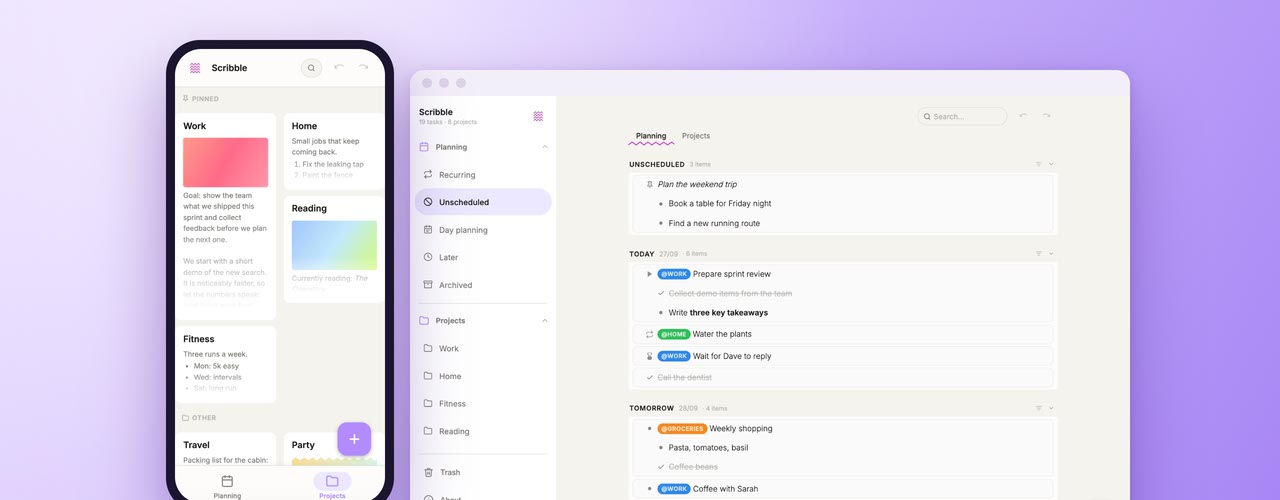
Your to-do list, your notes and your plans for the week, all in one calm place. Scribble is a free to-do list and notes app that runs right in your browser, on your computer as well as on your phone. No app store and no account: open it and start typing, or install it on your phone in a few seconds. Everything you write stays on your own device.

What is Scribble?
Most to-do apps either do too little or want to do everything. Scribble sits in the middle. It is a day planner, a task list and a notebook for projects, built so that writing a task feels as quick as scribbling it on paper. Type a line, press Enter, and the next line is ready. Indent with Tab to make sub-tasks, and use the keyboard for almost everything.
Spicy Yoghurt built Scribble for its own daily work: keeping track of meetings, follow-ups, side projects and the groceries. It turned out to be useful enough to share, so now you can use it too.
Plan your week, one day at a time
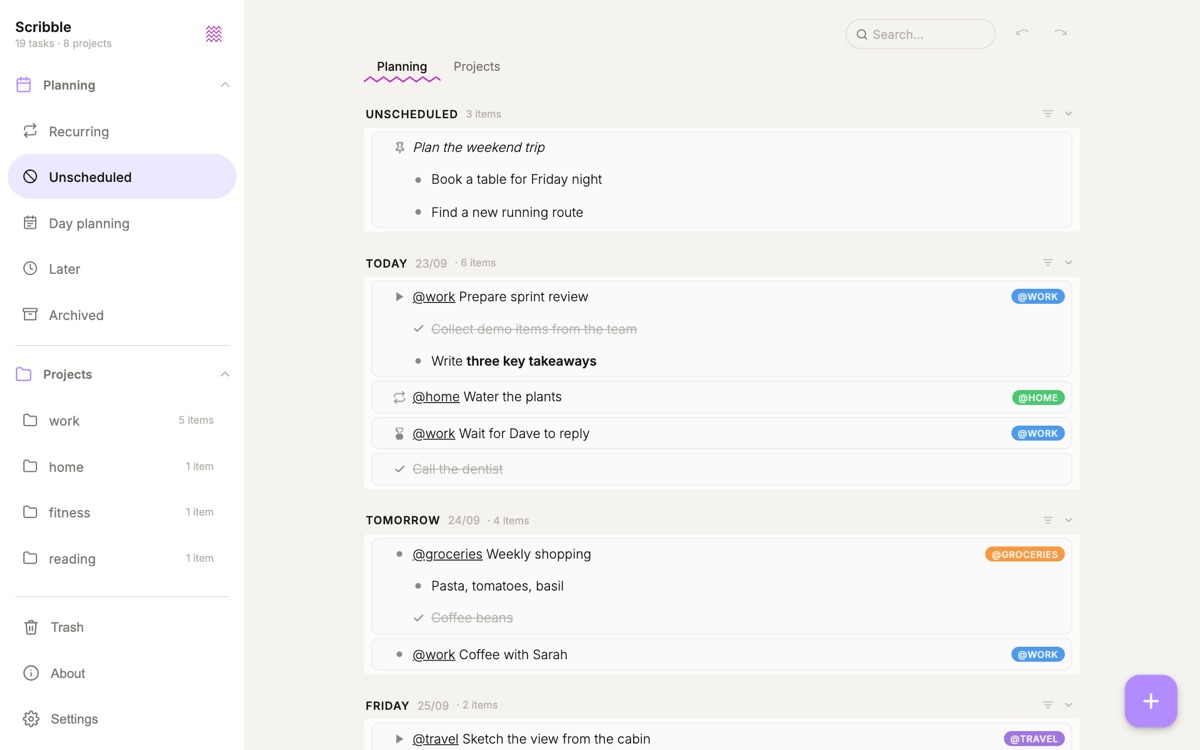
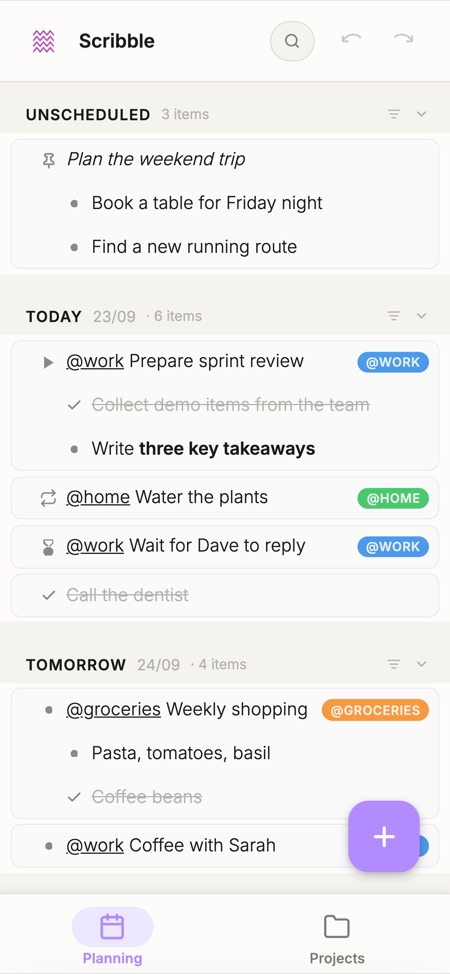
The Planning tab shows a list for today, tomorrow and the days after that. Tasks without a date wait in Unscheduled, and anything you'll get to someday goes to Later. Drag a task to another day, or select it and pick a date. In the settings, you decide which days are work days, so your weekend doesn't fill up with empty lists. Some handy features for your daily lists:
- Sub-tasks - Indent a line with Tab to break big tasks into small steps
- Drag and drop - Move tasks between days or reorder them within a list
- Search - Find any task or project in an instant
- Automatic clean-up - Turn it on in the settings, and finished tasks from past days move to the trash on their own
Tag a task and get a project for free
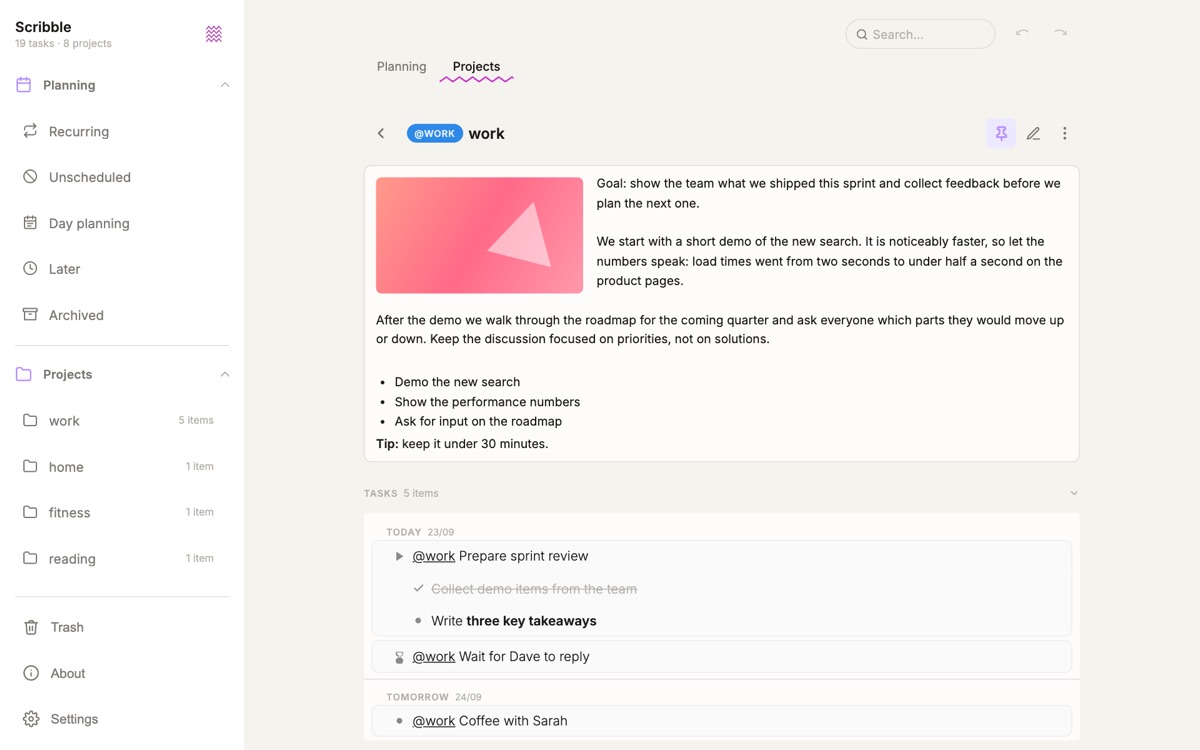
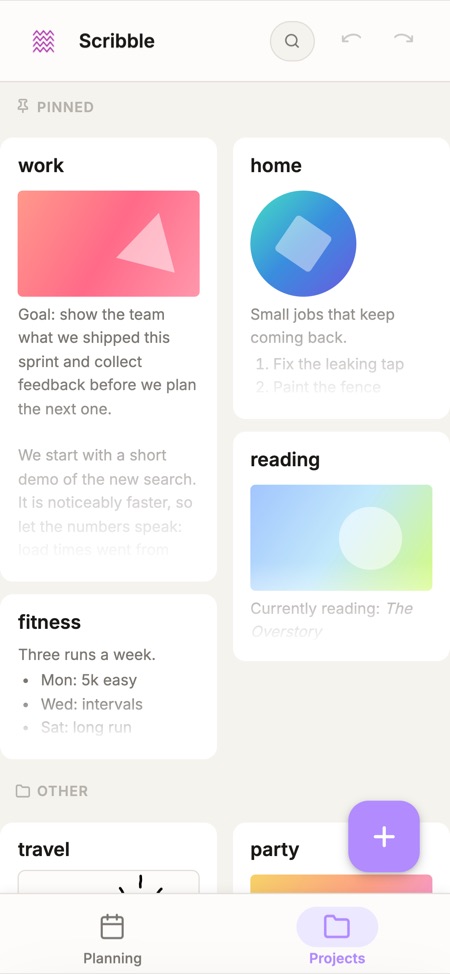
Start a task with an @tag, like @Work or @Home, and Scribble does the rest. The tag gets its own color, and a project is created for it. Open the project and you see a notes area at the top and every task with that tag below it, no matter which day you planned it for.
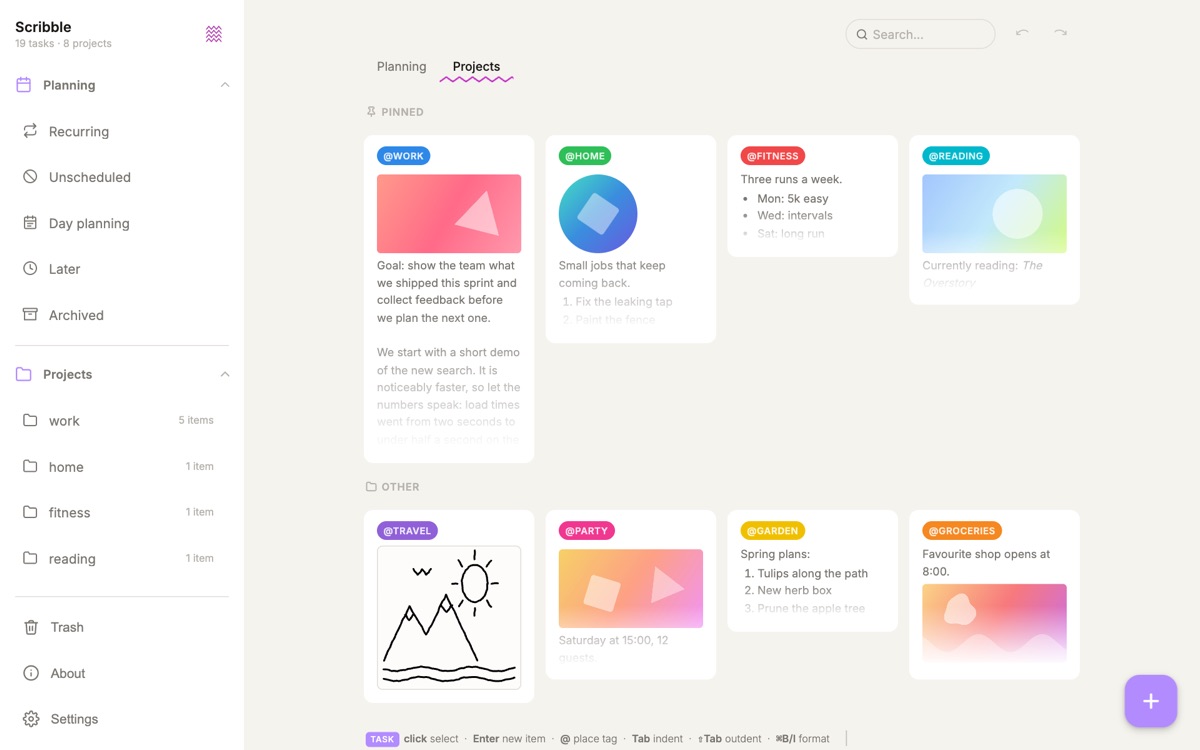
Use the notes to keep track of the bigger picture: goals, meeting notes, links, a checklist. Pin your most important projects to the top, group the rest into your own categories and archive what's done.
Notes with style, and sketches when words fall short
Notes in Scribble are more than plain text. Make words bold or italic, create bullet and numbered lists, add links and give lines a color. You can also insert images: resize them, let text flow around them or crop them to a circle.
Sometimes a quick drawing says more. Switch a project to drawing mode and sketch a layout, a mind map or a floor plan with your mouse, pen or finger.
Statuses that say more than "done"
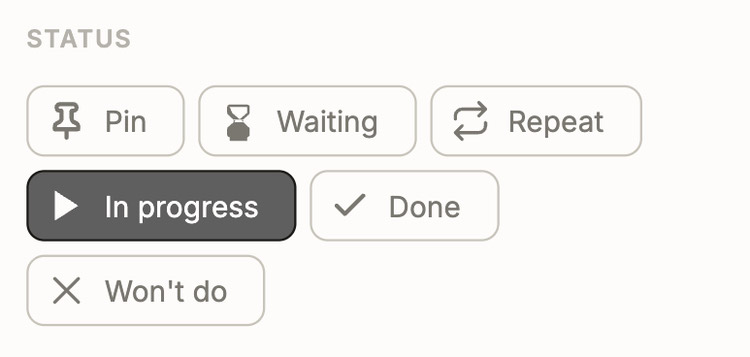
A task is not always simply open or finished. In Scribble you can give a task one of these statuses, each with its own icon, so you see at a glance where things stand:
- Pin - Moves a task to the top of its day, so it stays in sight
- Waiting - A label that shows you're waiting on someone else
- Repeat - For things that come back regularly; set them up as a recurring task and Scribble plans them for you
- In progress - A label for what you're working on right now
- Done and Won't do - Finished, one way or the other; if you like, Scribble moves these tasks to the trash automatically
Recurring tasks that plan themselves
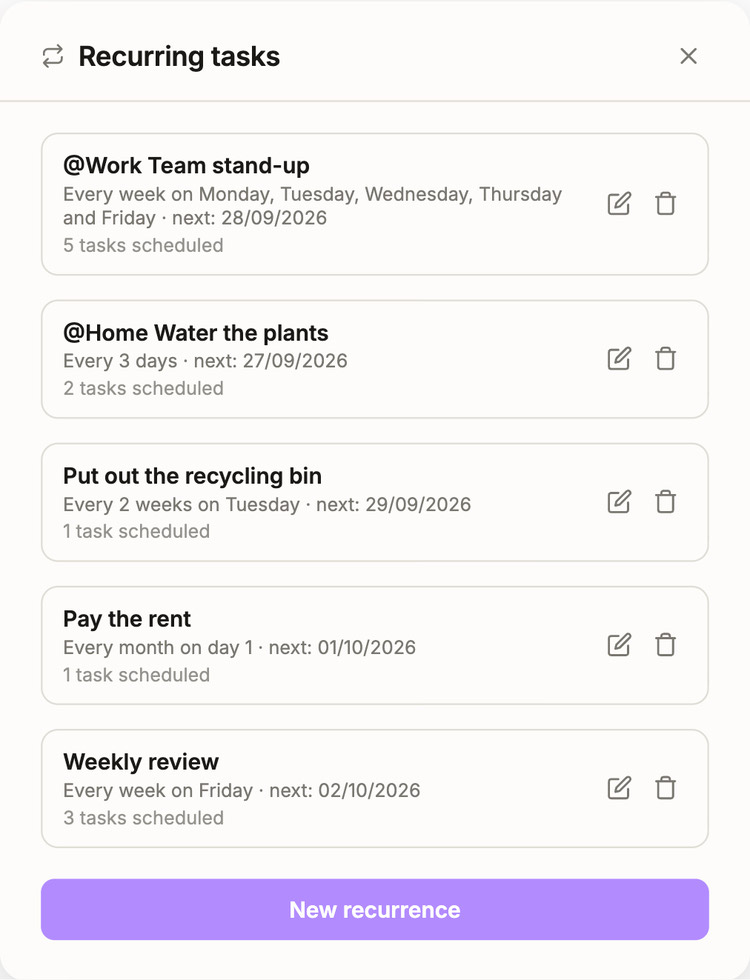
Weekly team meeting, monthly invoices, watering the plants every three days: set it up once as a recurring task and Scribble puts it on the right days for you. Repeat every day, week, month or year, on specific weekdays or on the last day of the month, with or without an end date. Recurring tasks can even have their own sub-tasks.
Keyboard shortcuts and an easy undo
A few handy keyboard shortcuts make Scribble quicker to use (on a Mac, use Cmd instead of Ctrl):
- Enter - New task
- Tab / Shift+Tab - Indent or outdent
- @ - Place a tag
- Ctrl+B / Ctrl+I - Bold or italic
- Ctrl+Z / Ctrl+Shift+Z - Undo and redo
Deleted something by accident? Undo it, or restore it from the trash, where deleted tasks and projects are kept for 90 days before they disappear for good.
Take Scribble with you: install it on your phone or computer
Scribble works just as well on a phone as on a big screen. On mobile, a tab bar at the bottom takes you from your schedule to your projects with a single tap. Select a task, and an action sheet with big buttons lets you indent it, give it a status or pick a date. Scribble is a progressive web app: a website that works like a regular app. That means you can also install it:
- iPhone and iPad - Open Scribble in Safari, tap the Share button and choose Add to Home Screen
- Android - Open Scribble in Chrome, open the menu and choose Install app
- Windows and Mac - Click the install icon in the address bar of Chrome or Edge
Scribble then gets its own icon and window and opens like any other app. And just like in the browser, it keeps working when you're offline.
Your data stays yours
Scribble has no user accounts and no cloud. Your tasks, projects, drawings and images are stored right in your browser, on your own device. That keeps things private and fast, but it also means you're in charge of your own backups:
- Backup to file - In the settings, save a backup whenever you like. In Chrome or Edge, Scribble can also save one every day to a folder of your choice
- Restore - Load a backup file in any browser, for example when you move to a new computer. Loading it replaces everything Scribble has stored in that browser
Try Scribble now
The best way to find out if Scribble suits you is to simply give it a try. Plan tomorrow, tag a few tasks and see your first project appear. It's free, it takes a few seconds, and you don't need an account.
Frequently asked questions
Is Scribble free?
Yes. Scribble is completely free to use, without ads inside the app and without a paid plan.
Do I need an account?
No. There is no sign-up and no login. Open the app and start writing.
Where are my tasks stored?
Locally, in the browser on your own device. Nothing is sent to a server. Use the backup option in the settings to keep a copy or move your data to another device.
Does Scribble work offline?
Yes. Once you've opened Scribble, it keeps working without an internet connection.
Can I use Scribble on my phone?
Yes. Scribble works in any modern mobile browser and you can add it to your home screen to use it like a regular app.
Does Scribble sync between devices?
Not automatically. Each browser keeps its own data. You can move your tasks from one device to another with a backup file.
No comments yet. Be the first to leave one!