
Free Online Folder Compare Tool
Compare two folder structures side by side and see exactly which files were added, removed or changed. Everything runs on your own machine: your files are never uploaded. Read how it works.
Compare two folders and see what changed
Two folders that should be the same, but somehow aren't. A backup next to the original. Last week's version of a project next to today's. The folder on your laptop next to the copy on a USB stick. Folder Compare puts them side by side and shows you in a few seconds which files were added, which were removed and which were changed. No more clicking through both folders and hoping you spot the difference.
How to compare two folders
Comparing two folders takes just four steps:
- Pick two folders - At the top of the tool, choose one folder in the left box and one in the right box, or simply drag a folder onto each box.
- Click Compare - Both folders are read and lined up in two file trees, row by row.
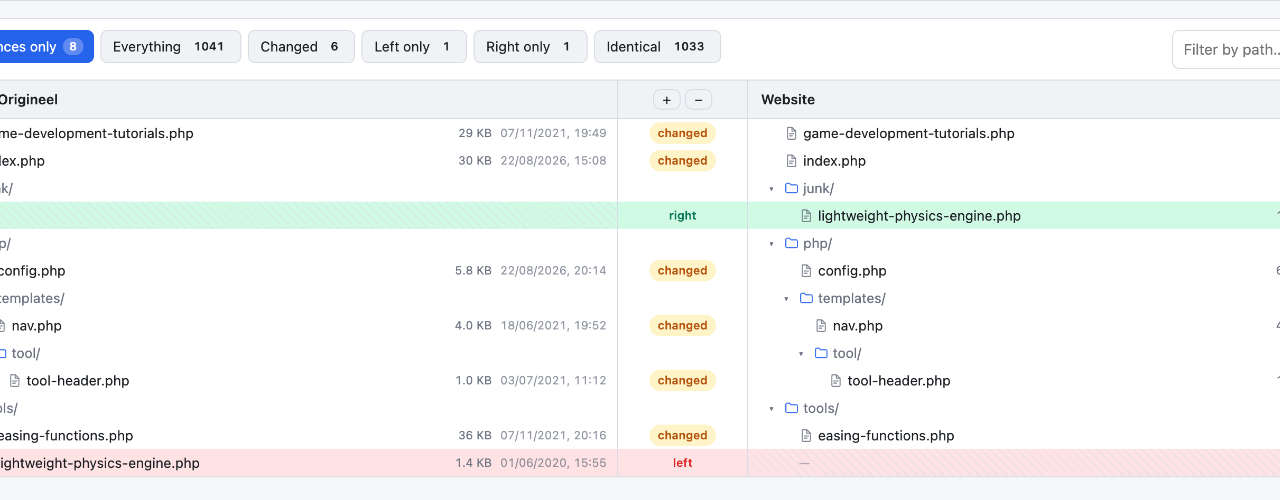
- Spot the differences - A file that only exists on the left turns red, and a file that only exists on the right turns green. So with the older folder on the left, red means removed and green means added. A changed file gets a yellow changed label. Folders with differences expand automatically, and a collapsed folder tells you how many changes are inside.
- Open a file - Click a changed file to see both versions next to each other, with every changed line and character highlighted.
Changed something in the meantime? One click on Compare again and you're looking at the current contents of both folders.
Your files stay on your computer
Most online tools want you to upload your files first. Folder Compare doesn't. It reads the folders straight from your own disk, inside the browser tab, and nothing is sent to a server. There's no account to create and nothing to install. That makes it just as safe for client work or private photos as for a folder full of game sprites.
What makes it handy
Here's what sets Folder Compare apart:
- Exact results - Files are compared byte by byte, not by date. A fresh copy gets new dates, but if the content is the same, Folder Compare tells you it's the same.
- Side-by-side diff - Read changes in text and code files line by line. Unchanged lines are hidden, and Show all lines shows you the whole file. In this view, differences in line endings or extra spaces aren't highlighted, as long as Ignore whitespace is on. It's on by default.
- Images too - Changed images are shown next to each other, so you can see what's different.
- Filters - Above the file trees, you can show only the changed files, or only what's missing on one side, or search for a path.
- Skip the clutter - By default, Folder Compare skips folders like
.git,node_modulesandbuild, and files like.DS_Storeand*.log. Add your own names or patterns, like*.tmp, to the Ignore list, or remove the ones you do want to compare. - Recent comparisons - Your browser remembers the folders you compared, so you can run the same check again later with a single click.
When to use it
Folder Compare is useful for things like:
- Backups - Checking if a backup or a copy to an external drive is complete
- Missing files - Finding missing files after moving or syncing a folder
- Project versions - Seeing what changed between two versions of a project
- Old projects - Digging through old projects that never made it into version control
Frequently asked questions
Is Folder Compare free?
Yes. It's free to use, without an account and without a limit on the number of comparisons.
Are my files uploaded?
No. Everything happens in your browser, on your own computer. Your files never leave your machine.
Which browsers and systems does it work on?
Folder Compare works in Chrome, Edge and Opera on a computer, on Windows, Mac, Linux and Chromebook. Safari and Firefox can't open folders from your disk yet, and neither can browsers on phones.
Can it handle big folders?
Yes. Folder Compare marks files that differ in size as changed right away, without reading their contents, so even a big folder doesn't take long. Files over 25 MB that are the same size on both sides get the label too large and aren't read. Click one and choose Open anyway if you still want to compare it.
Is this an alternative to WinMerge or Beyond Compare?
For finding out what's different between two folders: yes, and without installing anything. Folder Compare doesn't copy or merge files between the two sides, so if you need that, a desktop program is still your friend.
Give it a try above. Missing something? Let us know in the comments below. We'd love to hear what you're comparing!
Comments
Thanks! We've received your comment. We check every comment by hand before it appears, so this can take a few days.
No comments yet. Be the first to leave one!